Epson Smart Panel
Seiko Epson CorporationTools
4.518.06K Reviews
- Version
- 5.4.0
- Installs
- 10.00M
- Age Rating
- Everyone
Screenshots

Our Review of Epson Smart Panel
 Analysis by Appyee
If you have an Epson printer or scanner and usually reach for your computer whenever you need to print, scan, or check a document, Epson Smart Panel is designed to make that routine feel much more direct. I tested it as a mobile tool from Epson, and its main appeal is simple: it puts everyday printer and scanner controls on a phone instead of making you search through desktop menus.
This is a free tools app from Seiko Epson Corporation, rated for Everyone and available for devices running Android 9 or later. Its current version is 5.4.0, and it has already passed the ten-million-install mark, with an average rating of 4.5 from roughly 481 thousand ratings. Those figures suggest that it is not a niche companion for a handful of models, although the experience still depends heavily on whether your particular Epson device is supported.
My overall impression is positive, especially for people who want a quick way to handle ordinary home printing. It is not a replacement for every printer utility, and it does not turn a basic printer into a full office system. What it does well is reduce the distance between a document on your phone and a physical page, while also giving scanner owners a more comfortable starting point than opening a full desktop application.
What to expect before you install it
The most useful way to think about this app is as a control panel for compatible Epson hardware. You open it on your smartphone, connect it to the printer or scanner, and then use the available controls for the tasks that device supports. That sounds obvious, but it matters because the app is not equally useful with every Epson product. A printer with scanning hardware can offer a broader experience than a simple print-only model.
I would recommend it first to people who print from phones regularly: families printing school pages, remote workers handling forms, students sending documents to a home printer, or anyone who receives a file by email and wants a paper copy without moving it to a computer. It is also a sensible companion for occasional scanning, particularly when the original document is already beside the printer and the phone is the device you have in your hand.
The app feels most valuable when convenience matters more than deep control. If you need the extensive color-management, layout, or production options found in desktop printer software, a computer remains the better choice. Likewise, if you own a non-Epson printer, this is not a universal printing solution. Its strength comes from working as a focused bridge between Epson equipment and a mobile device.
One practical point is worth checking before you build your routine around it: confirm that your exact printer or scanner appears during setup. Epson has a wide range of hardware, and compatibility is the deciding factor. Installing the app is easy enough, but the real first milestone is not opening the interface; it is seeing your device recognized and getting a usable action on screen.
Why the phone-based approach can be better
Traditional printer utilities often make you think in terms of drivers, desktop windows, and folders. Smart Panel starts from the phone, which is where many documents now arrive. That changes the workflow. A photo received in a messaging app, a PDF saved from email, or a file stored on the phone can be closer to the printer than it would be on a computer.
I also found the mobile approach helpful for shared household use. A family member does not necessarily need to understand the printer’s buttons or remember which computer has the correct software. Once the printer is connected and visible, the phone becomes a familiar remote control. The trade-off is that the phone itself becomes part of the chain, so keeping the app and the document together is important.
Compared with relying only on the operating system’s print command, the Epson app has a more device-specific purpose. The usual system print option may be quicker for a one-off page, but it can feel detached from the printer’s own workflow. Smart Panel is more useful when you want one place for Epson-related tasks rather than a generic print dialog that varies between phones and apps.
Setting it up without unnecessary frustration
For a first-time user, I suggest starting with the printer powered on and ready before opening the app. Keep the phone near the device, and make sure you know which Epson product you intend to connect. This sounds like basic preparation, but it prevents the most common early mistake: trying to diagnose an app problem when the real issue is that the printer is asleep, disconnected, or not the model you expected to use.
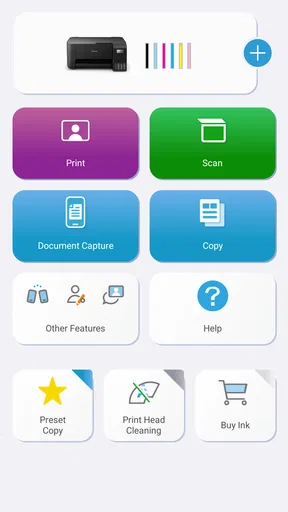
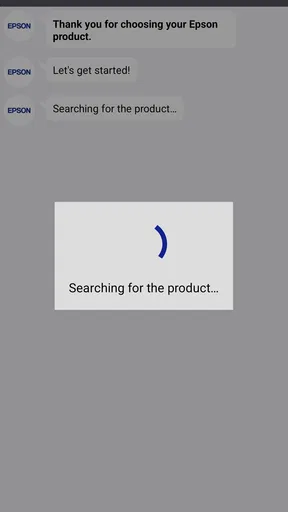
After launching the app, follow its device-discovery process rather than jumping immediately into document sharing. The important question is whether the app can find and identify the printer or scanner. If it does, take a moment to look at the available actions. The choices shown are tied to the connected hardware, so the first screen is also a quick way to understand what your particular setup can actually do.
If the device does not appear, I would not repeatedly tap the same search control. First check the printer’s power and network status, then confirm that the phone is connected to the same local network when your setup requires that arrangement. Restarting the printer and reopening the app can be more productive than changing several settings at once. A clean, methodical retry makes it easier to tell whether the problem is discovery, connectivity, or file handling.
Another useful habit is to connect one printer at a time during the first setup. If several Epson devices are nearby, selecting the wrong one can create confusion later, especially if two models have similar names. Once the correct device is working, you can explore whether the app makes switching between available hardware convenient for your household.
The setup is not the place to test every possible document type. I recommend using a small, ordinary file first. A short document or a single image gives you a clear result and avoids wasting paper while you learn where the print controls appear. This is one of the simplest ways to make the first experience reassuring rather than experimental.
The first meaningful success
My preferred first test is a single-page document that you already know looks correct on the phone. Open it from the app’s print workflow, select the connected Epson device, review the basic choices, and send one copy. The goal is not to explore every setting; it is to confirm the complete path from phone to printer.
That first page answers several questions at once. You learn whether the printer is reachable, whether the app can receive the file from your chosen source, whether the paper is loaded correctly, and whether the result matches the orientation you expected. If the page comes out correctly, you have established a reliable baseline for more important jobs.
For a first scan, place a simple sheet on the scanner and use the scanning action offered for the connected device. Keep the original flat and aligned, then inspect the digital result on the phone before sharing or storing it. This is where a mobile scanner workflow becomes genuinely useful: you can check the result immediately instead of waiting until you are back at a computer.
A realistic everyday example is a school permission form sent to a parent’s phone. I would open the document, connect to the Epson printer through Smart Panel, print one copy, sign it by hand, and then scan the completed page if a digital copy is needed. That sequence avoids transferring the file between several apps and makes the printer useful even when the computer is turned off.
There is a small but important trade-off in that scenario. The phone is convenient for receiving and sending the document, but it is also easy to choose the wrong version if several copies are stored. Before printing, I check the filename or preview carefully. The app can simplify the hardware connection, but it cannot replace good file organization.
Where new users commonly get confused
The first confusion usually comes from expecting every Epson printer to expose the same controls. The app’s usefulness changes with the device. A scanner-equipped multifunction printer may present scanning and printing options, while a more basic printer naturally offers fewer choices. A missing button is not automatically a malfunction; it may simply reflect the hardware connected.
Another point of confusion is the difference between selecting a document and selecting a device. On a phone, it is easy to think that opening a PDF means it is already ready to print. In practice, the app still needs a compatible Epson product available. I treat these as two separate steps: choose the file, then verify the target printer before confirming the job.
Paper settings can also cause disappointing results. A document that looks fine on the screen may print with unexpected margins or orientation if the paper loaded in the printer does not match the choice in the workflow. I make the paper check part of the routine, especially for envelopes, forms, or images where cropping matters more than it does for plain text.
Scanning creates its own kind of uncertainty. A scan may be technically complete but still need a quick inspection for skew, shadows, or an edge that was placed too close to the glass. The convenience of scanning to a phone is not a reason to skip quality control. For a form or receipt, I always zoom in before treating the digital copy as finished.
It is also worth separating app behavior from printer behavior. If a print job pauses, produces a blank page, or fails to look right, the cause may be ink, paper, a cover that is not closed, or the printer’s own status rather than the mobile interface. Checking the physical device before reinstalling the app saves time and avoids losing a working connection.
Small workflow improvements that make a difference
One of the best habits is to use the app for a controlled first page before sending a long document. This is especially useful for forms and images. A single test lets you catch orientation, paper, and scaling problems early. It is a modest step, but it prevents the most annoying kind of waste: discovering after a large job that the entire batch was set up incorrectly.
For scanning, I would create a consistent naming routine immediately after checking the result. The app can help you capture a document, but a phone full of files with vague names quickly becomes difficult to search. Naming a scan with the subject and date makes the mobile workflow much more useful later, particularly for receipts, signed forms, and household records.
When printing photographs, I would judge the result under the lighting where the picture will actually be viewed. A phone display can make an image look brighter or more saturated than the printed page. The app makes sending the image easy, but it does not remove the difference between a glowing screen and physical ink. For casual snapshots this may not matter; for a meaningful photo, it is worth doing a small test first.
Another non-obvious advantage is that the app can encourage a clearer division between quick jobs and detailed jobs. I use the phone workflow for convenience tasks and move to a computer when I need careful document composition or more deliberate adjustments. Trying to force every job through the mobile interface is less efficient than accepting that each tool has a proper role.
Shared printers introduce a further trade-off. A phone-based workflow is approachable for several people, but everyone still needs to know which printer is connected and what is currently loaded. I would keep the printer’s physical state predictable—ordinary paper for routine documents, for example—and avoid sending a critical job without checking that nobody else has changed the setup.
Who should use it, and who should choose something else
I think Epson Smart Panel is a strong fit for a home printer that is used from phones more often than from a desktop. It is particularly appealing when documents arrive through mobile communication and the printer sits in a shared room. The free price removes the main barrier to trying it, and the Everyone age rating makes it suitable for ordinary family use.
It is also a good choice for someone who owns an Epson scanner or multifunction printer but dislikes opening a full computer application for a simple capture. The ability to inspect a scan on the same device used to send it can shorten the process considerably. For occasional paperwork, that convenience is more important than having a long list of specialist controls.
I would be more cautious if you need professional print preparation, advanced color accuracy, or a highly specialized scanning workflow. In those cases, the manufacturer’s desktop tools or software designed for your particular work may offer better control. The app’s purpose is practical access, not replacing a complete production environment.
I would also skip it if your printer is from another manufacturer or if you rarely use mobile devices for documents. A generic operating-system print feature may be enough for occasional jobs, and adding a dedicated app would not necessarily improve that routine. The value here comes from the combination of Epson hardware and a phone-centered workflow.
What to do after the first successful job
Once the first print or scan works, repeat the process with the task you actually care about. If you installed the app for photos, try one photo. If you need it for signed paperwork, test a form. This confirms that the workflow suits your real documents rather than only passing a simple demonstration.
Then explore the actions exposed by your specific printer or scanner. I would do this gradually, one function at a time, while keeping the successful basic workflow in mind. If a more advanced option seems unclear, return to the simple print or scan path rather than changing several variables together. That approach makes troubleshooting much easier.
Keep the app updated when practical, especially if your printer is newly installed or the connection has become unreliable. The current release is 5.4.0, and using the current version gives you the best chance of seeing the interface intended for today’s supported devices. Still, an update cannot solve every hardware or network issue, so I would continue checking the printer itself when something goes wrong.
The app has earned a substantial audience—more than ten million installs and about 18 thousand written reviews—so it clearly serves many ordinary printer owners. I would interpret that popularity as reassurance that the basic idea is proven, not as a guarantee that every model or household will have an identical experience. Compatibility and the type of work you do remain more important than popularity alone.
After using it, my recommendation is straightforward: try Epson Smart Panel if you own compatible Epson equipment and want your phone to handle routine printing or scanning. Start with one device, one simple file, and one carefully checked page. If that first path works, the app can become a genuinely convenient part of everyday paperwork. If you need deep desktop-level control or use another printer brand, the usual computer software or built-in mobile printing tools may be a better match.
For the right user, the strongest feature is not a flashy extra but the reduction of small obstacles. I can move from a document on my phone to a physical page, or from a paper original to a checked digital copy, without making the computer the center of the process. That is a modest promise, but in daily use it is exactly the kind of convenience that makes a utility worth keeping.
Verdict
Strengths of Epson Smart Panel
- Clear setup guidance for compatible Epson printers and scanners.
- Print, scan, copy, and maintenance tools are grouped in one app.
- Useful ink-level and supply-status information at a glance.
- Supports mobile printing from photos, documents, and cloud services.
- Helpful troubleshooting steps can reduce the need for technical support.
Limitations of Epson Smart Panel
- Works only with supported Epson devices and may require the same Wi-Fi network.
- Some advanced printer settings are still easier to access from a computer.
- Connection problems can occur after changing routers or Wi-Fi passwords.
- Certain features and cloud integrations may vary by printer model or region.
- The app may request network and device permissions that some users find intrusive.
Similar Picks in This Category
View All
Google LLC4.0

Gboard - the Google Keyboard
Google LLC4.5

Google Play services
Google LLC4.3

Google Play Store
Google LLC4.9

Files by Google
Google LLC4.5

SHAREit: Transfer, Share Files
Smart Media4U Technology Pte.Ltd.4.3
Frequently Asked Questions
What is Epson Smart Panel, and what can I use it for?
Epson Smart Panel is Epson’s mobile companion app for compatible printers and scanners. After connecting your device, you can print photos and documents, scan pages, copy certain materials, check ink or toner levels, view maintenance information, and access setup guidance. The exact tools available depend on your Epson model, operating system, and connection method, so it is worth checking compatibility before downloading.
Which Epson printers and scanners are compatible with Epson Smart Panel?
Compatibility is not universal across the Epson range. Epson Smart Panel is designed primarily for selected newer wireless printers and scanners, including many models in the EcoTank, Expression, WorkForce, and related product families. Before installing, search for your exact model in Epson’s official compatibility information or try the app’s device setup process. Older products may require Epson iPrint, Epson DocumentScan, or another Epson utility instead.
How do I connect Epson Smart Panel to my printer or scanner?
Your mobile device and Epson printer generally need to be connected to the same wireless network for the simplest setup. Open Epson Smart Panel, allow the requested permissions, and follow the on-screen instructions to discover or add the device. Some models can also use Wi-Fi Direct or Bluetooth-assisted setup. If the printer is not detected, confirm that it is powered on, connected to Wi-Fi, and not using a guest network that blocks local devices.
Can I print and scan from an iPhone or Android phone with this app?
Yes, Epson Smart Panel supports mobile printing and scanning on compatible Android and iOS devices. You can typically select photos, PDFs, or other supported files from your phone and send them to the printer, while scans can be saved or shared through available apps. Features and file support may vary between platforms and printer models. A stable Wi-Fi connection is recommended, particularly for larger documents or high-resolution images.
Is Epson Smart Panel free, and does it require an Epson account or subscription?
Epson Smart Panel is generally available as a free download, and basic functions such as setup, printing, scanning, and device monitoring do not normally require a paid subscription. Depending on your region, printer model, or the feature you select, the app may offer links to Epson services, supplies, registration, or account-based tools. You should also remember that ink, toner, paper, and optional cloud services can involve separate costs.
